Thursday, 26 April 2018

How you can hide and Unhide a post on Facebook

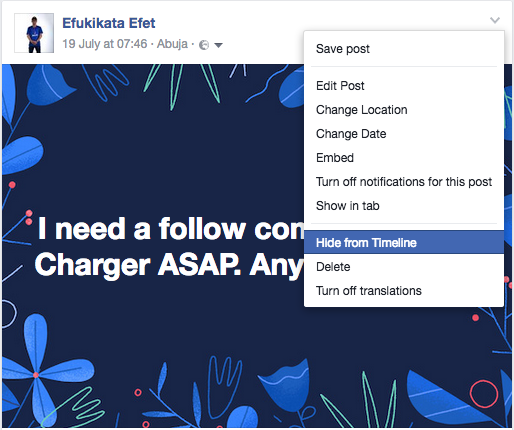
How you can hide and unhide a post on Facebook  actually has the same procedure as deleting a Facebook post but the difference in this case is that instead of choosing delete, you choose to hide Facebook post.

How Can I hide and unhide a Facebook Post

The difference between hiding and deleting a Facebook post is just on the effects for example, hiding a post that you've shared from your Page will remove it from your Facebook's Timeline and not from your Facebook's activity log. When you delete a Facebook post, you'll permanently remove it from your FB Page, including your Facebook Page's activity log.

How You can hide or delete a post from your Facebook Page:

  1. Go to the post on your Page's Timeline
  2. Click in the top-right corner
  3. Select Hide from Timeline or Delete

How to hide and unhide a Facebook Post


How You can Unhide a post you've hidden:

  1. Click on Settings at the top of your Facebook Page
  2. Click on Activity Log in the left column
  3. Click on next to the post you want to unhide and select ''Allowed on Page''
Still having difficulty deleting or hiding your Facebook post on your wall? Please leave us with your comment or check:

Friday, 23 March 2018

How to Find and View My Blocked List On Facebook - Facebook Blocked User Lists

How to Find and View My Blocked List On Facebook - Facebook Blocked User ListsWant to find those you blocked on Facebook so you can unblock them? Once in a long while, it's okay to visit those people on your blocked list to make certain that you didn't actually blocked them in error. Quick read: Source Article

Facebook is a social network that runs via the power of friendship - blocking so many people won't help you and not blocking annoying Facebook friends won't be an option either.


So how do you go about accessing those friends or Facebook users that you've blocked? We shall see how to locate users blocked by you on FB.


How To View Your Blocked List On Facebook


Joke
Your future spouse might be on your Facebook blocked list.
Sometimes go to your Facebook Blocked List just to see how your prisoners are doing.


How To Locate Your Blocked List On Facebook

Below are the steps to be taken in order to view all your blocked list.

To view your Facebook block list:
  1. Click in the top right of any Facebook page
  2. Click Privacy Shortcuts
  3. Click How do I stop someone from bothering me?
  4. Click View All Blocked Users.
For more Facebook tips, visit learnfacebookbasics.com

Please share this guide. Thank you!

How can you add someone to your Restricted list

How can you add someone to your Restricted list- If someone is disturbing you on Facebook, you can easily take care of that little problem by adding that 'someone' to your restricted list. Now the question is, How can you add someone to your Restricted list? Check it out:


On Your Facebook Application:

  1. Click on the menu button at the top right-hand of the page
  2. Tap on your name to take you to your profile
  3. Scroll down and tap on "Friends"
  4. Scroll through your list of friends and identify the person you want to block
  5. Once you've identified the person, tap on his/her name to open his/her profile
  6. Next, tap on the menu button(at the far right, next to message, it looks like three dots piled on top of each other)
  7. On the options that pop-up menu, tap on "Block"
  8. On the pop-up screen, you will be asked if you are sure you want to block the person, tap on "Block" at the bottom of the pop-up screen
OR:
  1. Click on the menu button at the top right-hand of the page
  2. Scroll down and tap on "Account settings"
  3. Tap on "Blocking"
  4. On the pop-up screen, type the person's name or email
  5. Tap on "Block"
  6. A list of names will come up that matches the name that you typed, identify the particular person you want and then tap on "Block" by the far right hand side of the name
On Your Browser:
  1. Click on at the top right of any Facebook page.
  2. Click on "Privacy Shortcuts"
  3. Click on "How do I stop someone from bothering me?"
  4. Enter the name of the person you want to block and click on "Block"
  5. Select the specific person you want to block from the list that appears and click on "Block" again.

#DeleteFacebook - Link to delete Your Facebook account right now | How to delete fb account permanently

How to Delete Facebook Permanently Link Right Now!: If you've resolved within yourself to permanently delete your Facebook account - this 2017 guide will help you very much on how to go about deleting it.

See: How to Deactivate Facebook Account Temporarily Step by Step Guide


How to Delete Facebook Permanently Link Right Now!!!


Before you proceed to delete your FB profile, make certain that you have backed up of all your photos and media files and contacts.


Note: Deleting your account implies that you will NEVER recover it again once deleted.

How can I permanently delete my account?


To remove your account from Facebook permanently, you should follow this step by step tips!

  • Login to your Account
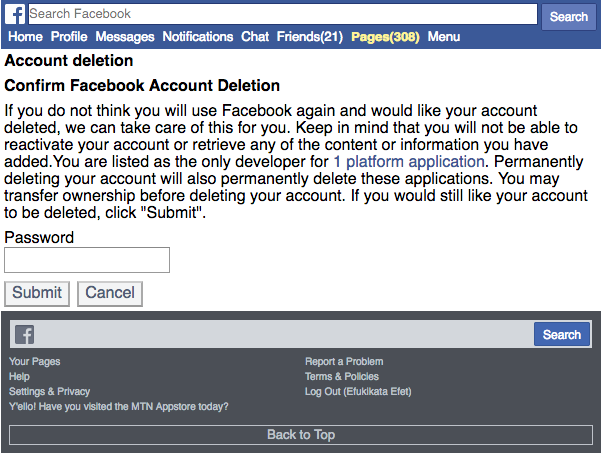
  • Visit the delete link here: www.facebook.com/account/delete
  • Follow onscreen instruction to delete your account permanently. This works 100%!


Delete Facebook Permanently Screenshot

Recommended: How Do I Logout of Facebook

How to deactivate Facebook Messenger #DeactivateFacebook

How to Deactivate Facebook Messenger | Deactivate My FB App - Messenger: You might probably be wondering where and how you can deactivate or cancel your Facebook messenger after deactivating your Facebook account. Well, disabling messenger is a simple issue to fix - -  I'm going to show you in a bit.

Facebook is one of the greatest marketing and social tool anyone can use to boost his or business but however, there are its downsides which causes users to delete Facebook account permanently or perhaps deactivate their profile.
In this guide we will show you how to remove messenger app after you may have deactivated your account.
Without any more waste of time, let's move ahead to the real deal of the day.

How to Deactivate Facebook Messenger | Deactivate My FB App - Messenger


How Can I deactivate Facebook Messenger?


You can only deactivate Messenger if you previously deactivated your Facebook account.

  • To deactivate Messenger after you've deactivated your Facebook account:
  • Open the Messenger (mobile app or web)
  • Tap your profile picture in the top left corner > Privacy & Terms > Hit on Deactivate Messenger button.
  • Enter your password and tap on Continue
  • Tap Deactivate

How Can I reactivate Facebook Messenger?

In order to reactivate Facebook Messenger, log in with your username and password. Your account will automatically be reactivated.

Note: If you deactivate both your Facebook and your Messenger and then decides to reactivate Messenger, keep in mind that both your Facebook account and messenger will be reactivated.
Farewell from Facebook!!! Any qualms? Let us know through the comment box below.

How to delete Facebook page | Delete Business page #DeleteFacebook

Delete Facebook Page | Delete My Page On Facebook - Remove Business Page: Facebook business page deletion is done in the same way as deleting a normal brand, organization or company page. You can delete your Facebook business page at any time regardless of how many likes you've accumulated but mind you, when you delete your Business page, everything concerning your business page will be lost - so you might want to think it over and over again before you proceed to delete your Facebook business page
Learn How to Hide Pages You Follow on Facebook

Delete Facebook Page | Delete My Page On Facebook - Remove Business Page

How to delete a Facebook Business Page Permanently and Immediately

If you have fully made up your mind to let go of your Facebook account, then you must check to see that you are the admin of the page you plan to delete, you'll need an admin login privileges of that particular page you wish to get rid of. If you are sure you own that page, then follow the steps underlined below to easily remove your Facebook page.


How to remove a Facebook Page

  1. Click Settings at the top of your Page
  2. From General, click Remove Page
  3. Click Delete [Page name]
  4. Click Delete Page and then click OK
Bear it in mind your Page won't be permanently deleted until 14 days has elapsed, but you can unpublish your Page at any time.

How to cancel or Undo Facebook Page deletion

Follow the tips below to cancel your Facebook page deletion:
  1. Go to your Page within 14 days of scheduling to delete your Page
  2. Click Cancel Deletion at the top of your Page
  3. Click Confirm and then click OK
Note that you can also delete your personal Facebook account.
Note: In the case where you can't find the delete option on your FB Page, make certain that you're truly an admin of that Page. 
Is this guide still confusing or you find anything hard to do? Please leave us with a comment describing the problem or read these guides:
Please share this article " Delete Facebook Page | Delete My Page On Facebook - Remove Business Page " on Facebook. Thank you so much!

Delete your Account on Facebook in less than 5 secs! #DeleteFacebook

Delete Your Account On Facebook in less than 5 Secs: Oh yes!!! You can definitely delete your Facebook account in less than no time. Deleting FB account seems a bit confusing these days because Facebook had earlier this year changed their delete settings. But this tutorial has got you covered!

Also see: How Can I Deactivate My Facebook Account Temporarily?


How to Delete My Account On Facebook in less than 5 Seconds


So you've got to the bridge where you have to say a farewell to everything concerning Facebook huh? If your decision is final, then you must make certain that you've downloaded all data concerning your Facebook account because if you hit on the permanent delete button - you won't have the chance to undo it again.


Search terms:
www.facebook.com/help/delete account, how to delete facebook account forever, delete my account, how to delete fb account permanently from mobile, facebook account delete option, how can i delete my facebook account immediately?, how to delete facebook account permanently without waiting 14 days, how to delete facebook account without password

How to Delete Facebook Account 

Deleting your Facebook account permanently is what you have to do if you truly want to quit Facebook.
Else, if you just need a break out of it... then you need to deactivate your Facebook account temporarily.

How to Delete Facebook Account Permanently?


To delete, click here: https://mobile.facebook.com/account/delete

Enter your password and proceed to completely delete your Facebook account.

This post first appeared here: Delete Facebook Account

If you still find it difficult to remove your account permanently, then leave us with your comment or check out the following guides:

How to deactivate Facebook Temporarily - 2018 Guide #DeactivateFacebook

How to deactivate Facebook Account Temporarily - 2018 Guide: There always comes a time when you just want to quit doing something. Sometimes not because those things are bad but you don't just feel like doing it anymore. Your spirit doesn't just like it and so, you have to do-away with it.

See: How to permanently delete your Facebook account


To temporarily deactivate your Facebook so that you can re-activate it whenever you feel like, follow the tips underlined below:


Deactivate Facebook Account Temporarily - Step by Step

How to Deactivate Your Facebook Account Step by Step 

Facebook users can decide to deactivate their FB account temporarily and choose to come back whenever they want.

To deactivate your Facebook profile account, follow the steps below:
  1. Click the account menu at the top right of any Facebook page
  2. Select Settings
  3. Click General in the left column
  4. Choose Manage your account then follow the steps to confirm
If you deactivate your account your profile won’t be visible to other people on Facebook and people won’t be able to search for you. Some information, such as messages you sent to friends, may still be visible to others.
If you’d like to come back to Facebook after you’ve deactivated your account, you can reactivate your account at anytime by logging in with your email and password. Keep in mind, if you use your Facebook account to log into Facebook or somewhere else, your account will be reactivated. 
This means your Facebook profile, including things like your friends, photos and posts, will be completely restored. Remember that you'll need to have access to the email address you use to log in to reactivate your account.


If you find these guide confusing please leave a comment or check out our previous articles on how to temporarily deactivate your account:

How I secured my account by changing my password

How I secured my account by changing my password: Securing your facebook account should be important to you because it represents you, and you should be the only person who has access to it. If someone gains access to your account, or creates an account to pretend to be you or someone else, Facebook's team could help but you need to help yourself first.

If you think your account has been hacked, you should visit this link https://web.facebook.com/hacked to secure your account. From there, you'll be asked you to change your password and review recent login activity.
Your account may have been hacked if you notice that:
  • Your email or password have changed
  • Your name or birthday have changed
  • Friend requests have been sent to people you don't know
  • Messages have been sent that you didn't write
  • Posts have been made that you didn't create
So, here's how to secure your Facebook Account by changing your password


How do you secure your account | Change Password

On Your Application

  1. Login to your Facebook account.
  2. Select the Menu button located at the upper-right corner.
  3. Scroll down and select “Account settings“.
  4. Choose "Security and Login".
  5. Scroll down and select "Change Password".
  6. Fill in the "Current password", "New password" and "Re-type New password" fields.
  7. Select the “Save changes” button when you’re done.
On Your Browser
  1. Log in your Facebook account details
  2. Click in the top right corner of any Facebook page 

  3. On the drop down menu, select "Settings"
  4. Click on "Security and Login" on the left hand side of the pop up page.
  5. Under "Login" click on "Edit" at the right-hand of "Change password"
  6. Fill in the "Current", "New" and "Retype New" fields. Current is your current password, New is the new password you want to change your current to and Retype New means you should retype that your new password.
  7. Click on "Save Changes".

How to unblock somebody on Facebook

How to unblock somebody on Facebook: Perhaps you had blocked your friend deliberately or erroneously and you want to reverse that action, all you have to do is to unblock that friend. So, do you want to know how to unblock somebody on Facebook? We'll be showing you in a short time.

SMART READ: How to change phone number to email on Facebook


How to Unblock My blocked Facebook friends

How to Unblock Somebody on Facebook

On A Facebook Application

  1. Tap on the menu button on the top of your Facebook page
  2. Scroll down to Account Settings
  3. Tap on "Blocking"  to show you a list of your blocked friends
  4. On the extended right of the name of the person you want to unblock and tap on "Unblock"
  5. On the screen that pops up, you will be asked if you are sure you want to unblock the person, tap on "Unblock"

READ ALSO: How to change your email address on Facebook

On A Browser 

  1. Click on    in the top right of your Facebook page
  2. Click on "Privacy Shortcuts"
  3. Click on "How do I stop someone from bothering me?"
  4. Click on "View All Blocked Users"
  5. Click on "Unblock" next to the name of the person you want to unblock.
  6. On the pop-up screen, you will be asked if you want to unblock the person, click on "Confirm" at the bottom of the pop-up screen to unblock that Facebook friend.

READ ALSO: How to remove number on Facebook

Please share this article "How to Unblock My blocked Facebook friends"...

#DeactivateFacebook - Deactivate and Reactivate your account on Facebook

How you can Deactivate and Reactivate your account on Facebook: Are you worried about how to reactivate your Facebook account after it might been deactivated? Or you are concerned about the possibility of getting back your deactivated account?. Read on to know How you can Deactivate and Reactivate your account on Facebook.


Smart Link: How to Temporarily Deactivate My Facebook Account.


How to Deactivate And Reactivate My Account On Facebook

Do you really want to deactivate your Facebook account or just need to do some fine-tuning of Facebook privacy or better-still turn off Facebook notification that you don't like.

Agreed!! Some notifications and updates are really energy-draining and if you really want to work at your peak, the best you can do is take a review of the notification you want to get update on.

If you commented on someones post, consider turning notification off for that particular comment if you do not want to follow up. By default, Facebook will send you notification of whatever reaction takes place on that comment.

Same goes to everything else on FB. Set your priority straight and you will not consider quitting.

If you are leaving because of privacy, Facebook allows users to set privacy that protects their ID. You can also block stalkers, frenemies,  annoying users, etc.

I don't want to continue with Facebook - I want to remove my account?

So you are totally done with Facebook for real, next thing to consider is if you want to permanently remove your account or just temporarily.
If you choose permanently, you can not recover your account again, you can't undo removal again.
If you choose temporarily, then you are left with option of reactivating Facebook account whenever you want to.

How can you reactivate your deactivated account?

Once you login back to your Facebook account with your Facebook account correct email and password. You account is automatically reactivated.

Smart Tips: How to Delete Facebook Permanently

How to immediately delete your Facebook photo album #DeleteFacebook

How immediately delete your Facebook photo album: Some Facebook users are eager to know how they can easily delete their Facebook photo album because the old method of deleting Facebook photo album is obsolete.

See: How to unblock a blocked Facebook User?


How Can I delete My Photo album On Facebook Immediately?

Before I proceed, below is how to Facebook allows you to delete your album in the past. See excerpts below.

''Some albums (ex: Profile Pictures) can't be deleted, but you can delete photos in those albums.
Deleting an album also deletes photos in the album. Once you delete an album, you can't restore it.
To delete an album:
Go to the album you want to delete
Clickin the top right and select Delete Album
Click to confirm''.
Currently, Facebook only allows you to permanently delete a single Facebook Photo but gives you an option to hide your current so that no one else can see that particular album.

Smart Read:

How to Hide your Album From Everyone Else?

  • Go to your Facebook profile
  • Go to your ''photos''
  • Next, click ''album''
  • You'll see the album you wish to hide from the public
  • Next, click on the drop down button below the album (at the right hand side)
  • Choose "Only Me".
That's all.
How to delete a Facebook photo album
If you insist, you can go ahead and delete every photo in that particular Facebook photo album. I hope this helps. Please share it.


Update:


You can also delete an entire album by selecting the album first. Then, you will see the gear icon, click on it and hit on delete album. It will work.

The fact is that the first gear icon you see doesn't work because you can't delete the default Facebook Album but you can surely delete the album you created on your own.


delete a Facebook photo album


Cheers!!!

Please kindly share it!!!

How you can Log out of your Facebook account

How you can Log out of your Facebook account- Successfully logging into your Facebook account is an easy thing, but what about logging out of it when you want? It's also very easy too.

How Can I Log out of My Account on Facebook?


There are two ways you can logout of your Facebook account. The first one is quite simple but the second one will require you to go through Facebook settings before you can fully log out.

Now, depending on reasons you want to logout, you might consider logging out of a (1) particular device or (2) All devices that has been used to access your Facebook account.

How Do I Log out of My Facebook Account?

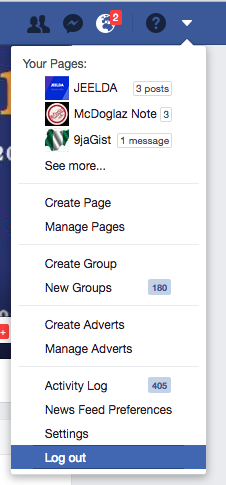
To log out from your current device, simply click on the V-like drop down button and select "Logout" at the top right hand corner of your Facebook page.

How Do I Log out of My Facebook Account?e


That's all!

More Advance Facebook Logout Method

The Where You're Logged In section of your Security and Login Settings shows you a list of devices and browsers that have been used to log in to your Facebook account recently. Each entry includes the date, time and approximate location when logging in, as well as the type of device used to access your account.

To log out of Facebook on another computer, phone or tablet:
  • Go to your Security and Login Settings
  • Click on the ''Where You're Logged In'' section
  • Find the session you want to end and click ''End Activity''
Clicking End Activity will immediately log you off of Facebook on that computer, phone or tablet.

Please share this article with other Facebook users!

If you are confused about this article, leave a comment below or follow these guides: